Convert MOV to MP4 (iPhone Videos) Without Mixing Up Compress
iPhones write .MOV. Inside that box the codec is either H.264 (older / “Most Compatible”) or HEVC (H.265, default on many phones). HEVC plays on Apple devices and fails in older Windows players and a long list of upload forms. People search “convert MOV to MP4” for two different jobs:
- It will not play on the PC or the form rejects MOV/HEVC.
- It plays, but it is 200MB for a 30-second 4K clip.
Those are different buttons in Shrynk. Using the wrong one wastes time or quality.
Convert vs compress
Convert mov → mp4 | Compress | |
|---|---|---|
| Goal | A file that opens everywhere | A smaller file |
| Where | Desktop Convert tab | Desktop Compress tab, or browser tool |
| Output | MP4 (re-encoded; quality/resolution options) | Always H.264 MP4 + AAC |
| Free limit | One file per run | One file, 100MB. Over that needs Pro on desktop |
| When HEVC is the only problem | This is the job | Also works: browser/desktop compress reads MOV and writes H.264 MP4 |
The browser tool is a compressor that happens to accept MOV. It is not the Convert grid. If the clip is under 100MB and you only need a playable smaller MP4, the tab on this page is enough. If you need a folder of camera-roll MOVs, or a 4K file over 100MB, use the Windows app.
Change the phone for the next clip
Settings → Camera → Formats: Most Compatible writes H.264 MOV (or MP4 depending on iOS) that Windows likes, at the cost of space on the phone. High Efficiency is HEVC. This only affects new recordings. It does not rewrite the Camera Roll you already have. For a one-time dump of old HEVC, convert or compress on the PC; do not reset the phone and hope.
AirDrop to a Mac keeps a high-quality MOV. AirDrop or cable to Windows still hands you HEVC more often than not. “Email itself to Gmail and download” is a third encode if Gmail recompresses. Prefer the Files app / a cable copy of the original, then one Shrynk pass.
Why the iPhone file is huge
Default recording is high bitrate and often 4K60 so you can edit later. A 30-second 4K MOV in the 150–250MB range is normal, not corruption. “Most Compatible” in Camera settings records H.264 and helps PCs, at the cost of larger files on the phone. You can change that on the phone for future clips; it does not rewrite what you already shot.
Path A: I only need it to play (Convert)
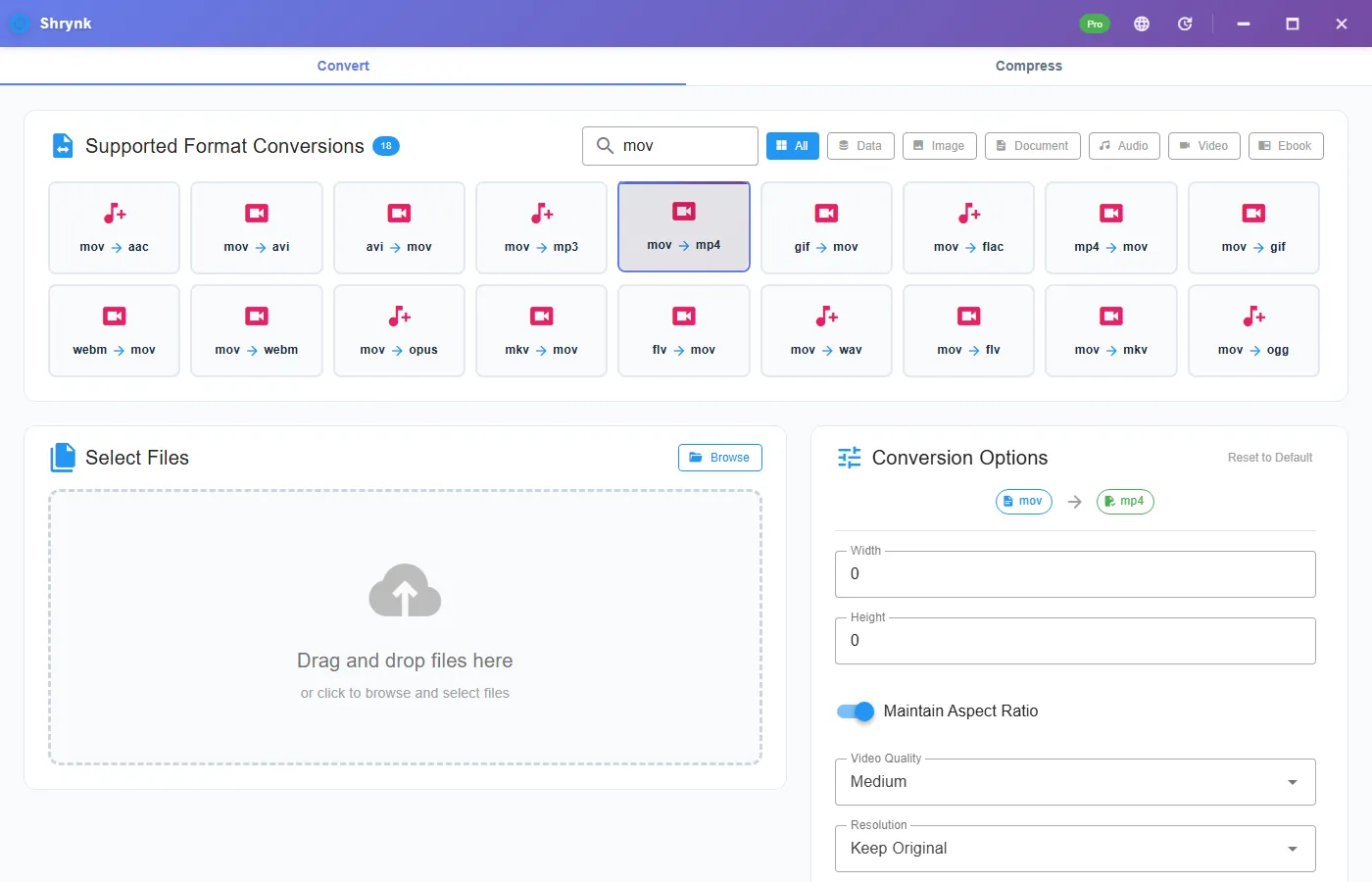
- Open Shrynk → Convert → Video → mov → mp4.
- Set quality (low / medium / high) and resolution (keep / 1080p / 720p / 480p) if the panel shows them. Keep + medium if you do not know.
- Drop the MOV. Run. Open the MP4 in Movies & TV or VLC on Windows.
HEVC → H.264 at the same perceived quality can grow the file slightly. That is the codec, not a bug. If the MP4 is still too big to send, go to Path B on the converted file only if you already checked playback. Prefer Path B from the original MOV if size was the only goal and the destination already accepts MOV (rare on Windows).
Path B: I need it smaller (Compress)
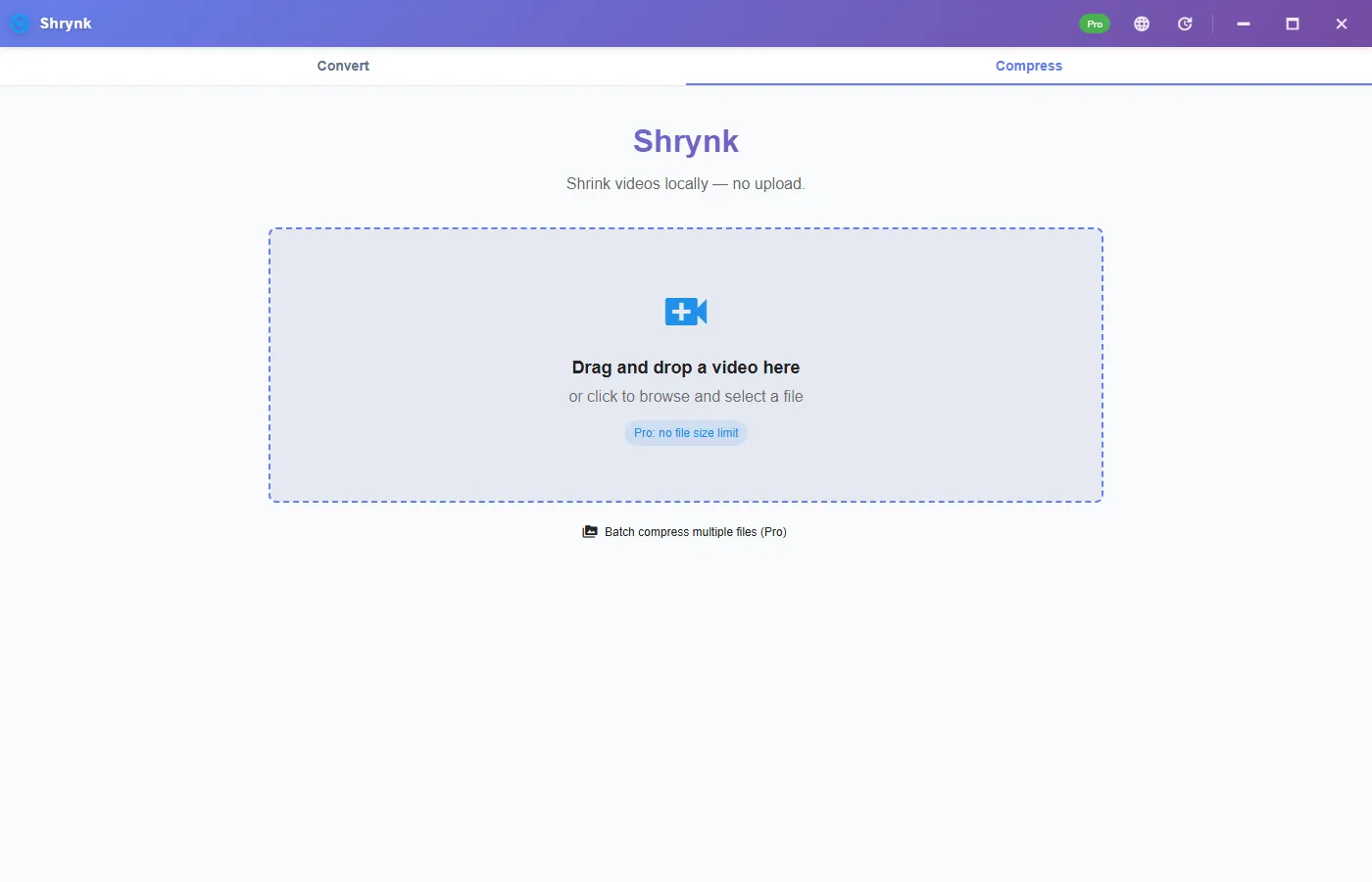
- Desktop Compress, or the browser tool for one file under 100MB.
- Quality preset maps to CRF 28 / 23 / 18 (low / balanced / high). Or set a target size (Discord 10MB, email 25MB). Details: video compression.
- Optional: strip audio on silent screen recordings.
- Output is H.264 MP4. That also fixes the HEVC playback problem as a side effect.
A 4K phone clip is usually over 100MB. Free compress will paywall. That is the license, not a crash. Pro is $9 one-time for size and batch.
iCloud and “Download Most Compatible”
iCloud Photos can hand Windows a smaller, already-transcoded MP4 if you pick compatibility options. That file is fine for chat and is already a second generation from the phone original. If you still have the HEVC MOV on the device, copy that and run one Shrynk pass instead of downloading the iCloud proxy and compressing it again. Two cloud transcodes plus one local compress is how a face turns to mush.
Do not do both “to be sure”
Convert at high quality and then compress from that MP4 is two lossy encodes. If you need both playback and a cap, compress the original MOV once (Path B). If you need a master for edit, keep the MOV and make a separate shareable MP4.
Worked size (typical, not a promise)
A 30-second 4K60 HEVC MOV from a recent iPhone often lands around 150–250MB. Path B, Balanced (CRF 23), 1080p if you also downscale on Convert, commonly comes out in the 20–40MB range for talking-head or walking-around footage. A screen recording of a static UI compresses much harder; a sports clip with constant motion compresses less. If you only down-convert HEVC to H.264 at “keep resolution + high quality,” you may see 160MB become 180MB. That is Path A doing its job (play), not Path B (shrink).
Microsoft’s HEVC Video Extensions can make some MOV files play in Movies & TV. That does not help an upload form that still rejects the container or the codec. Convert or compress when the destination is a website, not when you only want to watch the file once at home.
Live Photo, Cinematic, Slo-Mo
- Live Photo is not a normal MOV export. Converting a video you saved from Photos does not break Live Photos left on the roll.
- Cinematic / Slo-Mo (120 / 240 fps) encodes slowly because of frame count. Use the desktop app, not a browser tab, for a batch of those.
- Location / timestamp: do not assume every player copies metadata. If you need GPS for a report, keep the original MOV.
FAQ
Why does my MOV play on iPhone but not on a PC?
Almost always HEVC. Convert or compress to H.264 MP4.
Should I convert or compress?
Convert for playback. Compress for size. The browser tool is compress-with-MOV-in. See the table above.
Will HEVC to H.264 make the file bigger?
It can at matched quality. iPhone bitrates are high, so Balanced compress still usually shrinks. Compatibility is why you convert.
Does the free browser tool accept MOV?
Yes. One file, 100MB. Folder or larger: Windows app.
Camera-roll folder of MOVs: Shrynk for Windows. Free to install. $9 one-time for batch and files over 100MB.