Convert PNG to WEBP: The Card Exists — The Bytes May Still Be PNG
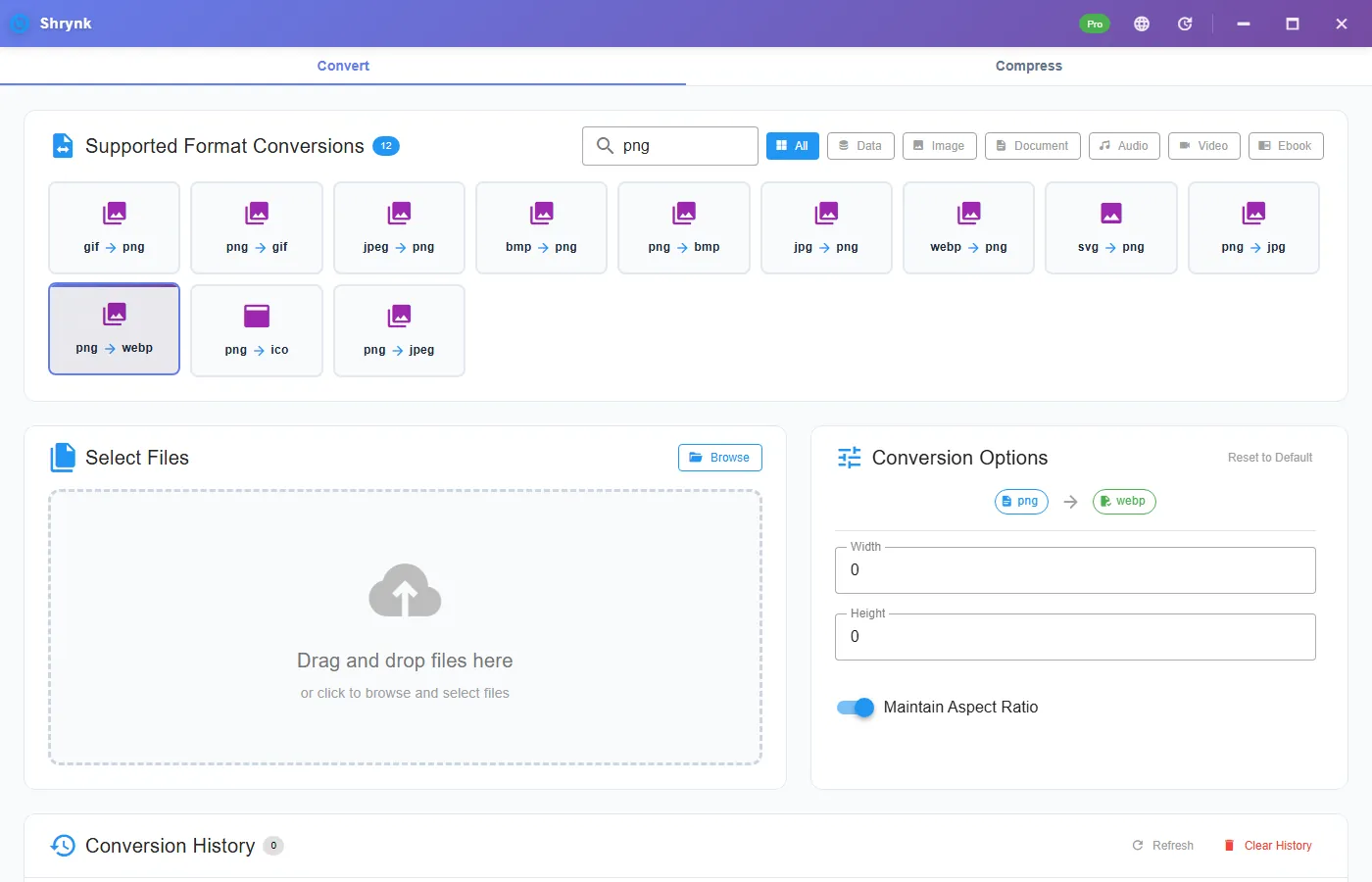
People type “PNG to WEBP” to shrink a screenshot or a logo for Chrome. Shrynk’s grid shows png → webp. You should know what this build actually writes before you point a CDN at the file. The image library we ship decodes WEBP. It does not encode VP8/VP8L. The convert path compresses the raster as PNG and saves it under the .webp name so the app does not depend on a CGO encoder. That is in the Go source, not a rumor.
If you needed to read a WEBP from Chrome, use WEBP to PNG or WEBP to JPG. Those decodes are real. This page is the encode direction. The Windows card still writes PNG bytes under a .webp name. The box below is different: this tab’s canvas writes a real RIFF/WEBP. Do not assume the desktop file matches the browser download.
What you should do instead, today
| Goal | Do this | Do not do this |
|---|---|---|
| A file Chrome saved as WEBP, need PNG/JPG | webp → png or webp → jpg | Rename .webp to .png |
| A PNG you will put on a site that accepts PNG | Keep the PNG. Resize if needed on png → png is not a pair; set width on another target or leave it | png → webp expecting a 30% win |
A CDN that sniffs RIFF…WEBP | Another encoder (Squoosh, cwebp, a future Shrynk build) | Trust Explorer’s Type column |
| A form that said WEBP but only checks the extension | This card may “work” and still be the wrong bytes | Assume every viewer is that sloppy |
We are not going to pretend the card is Squoosh. The quality standard on this site is: write the option keys that exist, and write the failure that is in the code.
What the panel shows anyway
Same resize trio as other non-JPEG targets: width / height (0 = keep, max 10000), maintain aspect ratio (on). There is no WebP quality 0–100. Quality on this mesh is JPEG-only. If you saw a quality field, you clicked png → jpg.
How to verify in two minutes
- Install Shrynk. Convert → png → webp. Drop a small PNG.
- Note the output path. Open it in a hex editor (HxD, or PowerShell
Format-Hexon the first 16 bytes). - If you see
89 50 4E 47(“PNG”), you have PNG compression in a.webpname. If you see52 49 46 46…57 45 42 50(“RIFF” / “WEBP”), you are on a build that already grew a real encoder — this article’s warning would then be stale; trust the bytes. - Upload to a CDN that rejects non-WebP. A sniffing edge will 415 or show a broken image. A dumb extension check may pass. That difference is why this page exists.
Free desktop = one file so you can run that hex check before a folder. The browser box on this page is the real encode. Hex-check both outputs if you will deploy them — they will not match on this Windows build.
Why the file may not get smaller
PNG-in-a-webp-name uses PNG best-compression as the fallback. A screenshot PNG is already lossless. You should not expect a WEBP-sized win. A 400KB UI PNG staying ~400KB (or growing) is consistent with “we wrote PNG again.” A real lossy WebP of a photo is a different algorithm we are not running. Do not tell a client you “optimized to WebP” off this card until the magic bytes say WEBP.
Resize (width 1920) will shrink pixels. That is a real size drop and has nothing to do with WebP. You could have resized and kept PNG.
Decode vs encode (do not mix the articles)
Chrome → disk as WEBP → Shrynk webp → png: decoder runs, PNG out, alpha kept. That path is why we have a WEBP-to-PNG guide. PNG → disk as “WEBP”: encoder fallback. Same mesh, opposite honesty. JPG → webp is the same encode fallback. We are not opening a fifth URL for that.
Failures that look like bugs (they are the encoder)
- Cloudinary / imgix / a
<picture>test says invalid WebP. Sniff failed. Expected on this build. - Photos opens it anyway. Some viewers sniff PNG and ignore the extension. That is not proof you shipped WebP.
- You thought quality 80 would appear. Wrong card or a different app. Ours does not have WebP quality.
- HEIC. Unrelated, unsupported.
What this will not do (current build)
- A spec-compliant WebP bitstream.
- Lossy WebP quality, effort, or lossless-WebP flags.
- Animated WebP from a PNG sequence.
- Matching bytes between the Windows card and the browser preview. The tab is real WebP; the app is not, yet.
When we will change this page
When the Windows build links a real encoder and saveImage for webp no longer calls png.Encoder, the hex check will flip to RIFF/WEBP. Until then, this article stays a warning with a screenshot of the card, not a “how to beat JPEG by 30%” tutorial. If you only needed a smaller PNG, set a width cap on a pair that actually writes PNG, or keep the source. If you needed JPEG, png → jpg quality 80–90 is the real lossy path we do ship.
Docs matrix already says the image mesh includes WebP. That is true for decode and the card list. This post is the encode asterisk. If a post and supported formats disagree later, trust the bytes and the Go file.
What a real WebP pipeline looks like (not this build)
cwebp / Squoosh / libvips emit RIFF/WEBP, optional quality, optional lossless, optional alpha. Cloudflare Polish and similar edges re-encode from JPEG/PNG to real WebP at the CDN. That is the usual “PNG to WEBP for Lighthouse” path. Shrynk’s desktop card is not that pipeline today. Using it to chase a Lighthouse “serve next-gen formats” audit will fail the lab if the auditor sniffs bytes — or pass a naive extension check and still ship PNG weight.
When we ship a real encoder, this section should shrink to a quality/effort table. Until the hex check flips, treat png → webp as a compatibility experiment, not a performance feature. The performance feature we already ship for photos is JPEG quality + width. For UI, keep PNG or decode WEBP that Chrome already made. Files stay local either way — that part is not the problem.
FAQ
Real WebP?
Windows card: not in this build — PNG bytes, .webp name. Browser box on this page: real RIFF/WEBP. Hex check both: 89 50 4E 47 vs RIFF/WEBP.
Need to unpack a Chrome WEBP?
Need a smaller photo today?
JPEG quality 80–85, optional width. Not this card. Convert docs.
Will you lie in the UI?
The card is labeled png → webp because that is the registry pair. This page is the caveat. We would rather lose the ranking than ship a fake optimization guide.
Download Shrynk for the pairs that already encode honestly (JPEG, PNG, GIF, extract, video).