Convert MKV to MP4 (AVI, WebM, and FLV Use the Same Panel)
MKV is a box that can hold almost anything: a rip, a Plex original, a screen recording someone remuxed. Windows Movies & TV and a long list of “MP4 only” uploaders bounce it. The search is “MKV to MP4.” The same encoder also does AVI, WebM, FLV → MP4. iPhone .MOV is the same mesh but a different audience — use MOV to MP4 for HEVC camera roll.
This is Convert. If the MKV already plays and you only hate the gigabytes, use Compress (always H.264+AAC MP4, CRF 28/23/18). Convert + Compress stacked is two lossy encodes. Pick one goal.
Convert vs compress vs extract
| Problem | Mode | Output |
|---|---|---|
| Won’t play / form rejects MKV | Convert mkv → mp4 | MP4, quality + resolution |
| Plays, 8GB, need Discord 10MB | Compress | H.264 MP4, target size or CRF |
| Only want the soundtrack | Extract mkv → mp3 | Audio, no picture |
| Need a GIF for a CMS | mp4 → gif after you have MP4 | Dirty, often larger |
Quality and resolution (real keys)
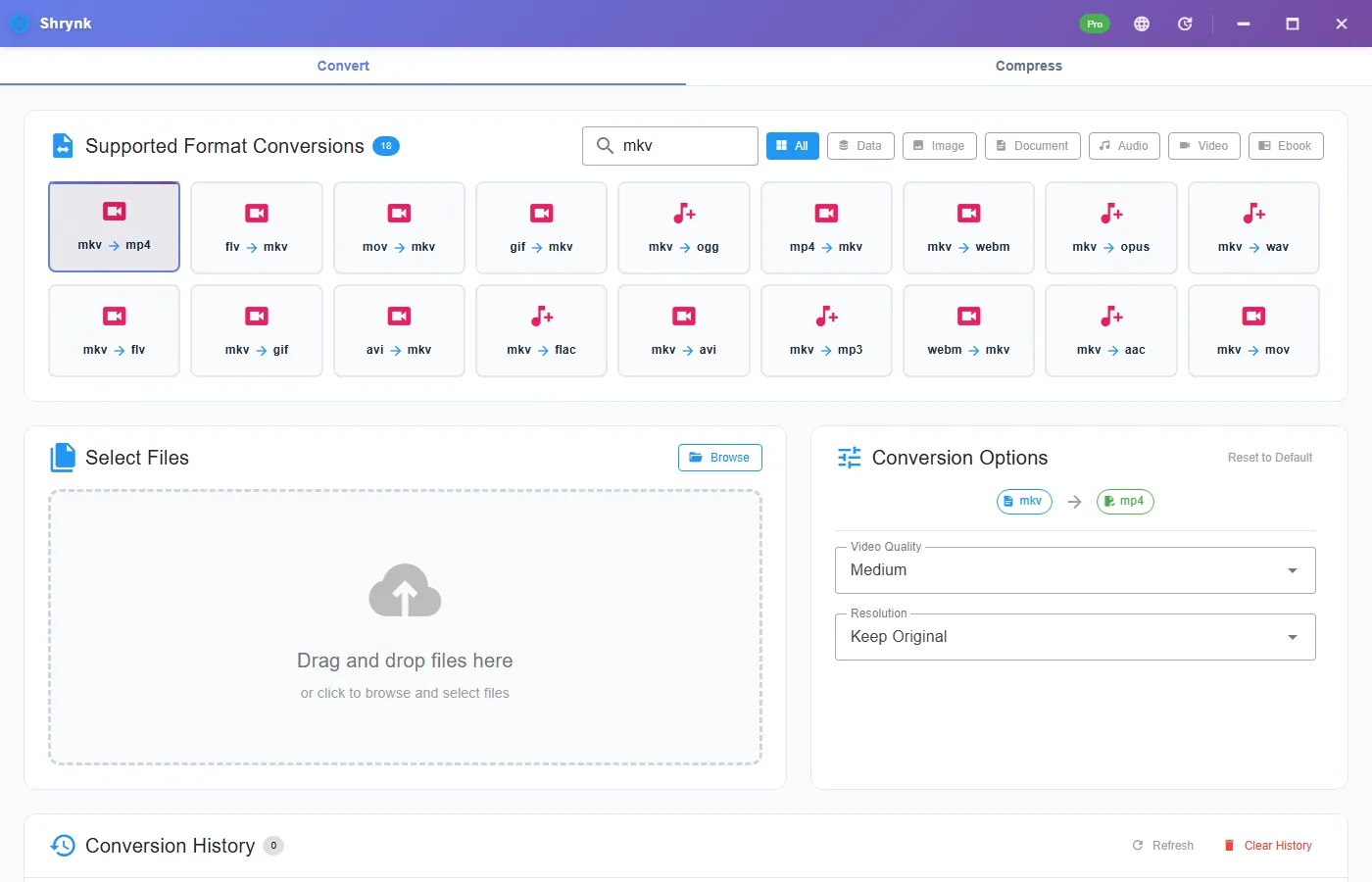
- Quality low / medium / high / ultra. Default medium.
- Resolution original / 1920×1080 / 1280×720 / 854×480. Default original.
Keep + medium if you only need playback. Drop to 1080p or 720p when the source is 4K and the destination is a laptop. Ultra is for a master you will keep; the file will not magically beat the source bitrate. Low is a preview. FFmpeg is bundled in the desktop app.
Steps
- Install Shrynk.
- Convert → search
mkv(oravi/webm/flv). - Click mkv → mp4. Medium + original unless you know you need 720p.
- Drop the file. Play the MP4 in Movies & TV or VLC. Check the first scene and a dark shot.
- Still too big to send? Compress the MP4 or, better, Compress the original MKV once if size was the only remaining problem. Do not Convert-ultra then Compress-low.
Free = one file. A season folder is Pro. Browser tool: one file ≤100MB, always compress-to-MP4 — it will accept some of these containers but it is not the Convert grid and it will not offer ultra/original the same way. First run.
AVI, WebM, FLV — do not open three more URLs
Old camera AVI, browser WebM, leftover FLV from a decade ago: same quality/resolution keys. WebM is often already VP9/Opus; forcing MP4 is for compatibility, not beauty. FLV from a site download may be a mess of timestamps — if the MP4 stutters, the source was sick. We do not offer a “fix timestamps only” remux toggle on this panel; it re-encodes.
Multiple audio tracks and subtitles inside MKV: the default streams win. Forced subtitle burns and commentary pickers are not on this card. If you needed every subtitle file, use a remuxer that copies tracks. Shrynk’s job here is “a file that opens.”
Failures that look like bugs
- MP4 is larger than the MKV. Efficient HEVC/AV1 inside MKV became H.264. Compatibility costs bits. Use Compress if size was the goal.
- No subtitles. Not burned in. Expected.
- Audio out of sync. Bad source timestamps. Try VLC on the original. Re-encoding will not always heal it.
- You renamed .mkv to .mp4. Players still see the old box. The decoder has to run.
What this will not do
- Lossless remux-only (copy streams, change box) as a documented option.
- DVD/Blu-ray folder structures, ISO, or DRM.
- PDF, HEIC, or “MKV to Word.”
A rip you can verify without trusting the thumbnail
After convert, check (1) duration matches the MKV, (2) audio language is the one you hear first in VLC on the original, (3) a dark scene for blockiness. If duration is 0:00, the source was a menu or a broken download. If audio is commentary, you got stream 0 and wanted stream 1 — this panel cannot pick tracks. Remux in a tool that lists streams, or live with the default.
Plex already plays MKV. You do not need MP4 for Plex. You need MP4 for a school portal, a WhatsApp-ish uploader, or a Windows box without VLC. Do not convert a 40GB remux to ultra MP4 “for the library.” You will wait an hour and gain a second lossy generation. Keep the MKV in Plex; make a medium 1080p MP4 only for the upload.
4K MKV → original + medium can still be huge. Set 1920×1080 if the destination is a laptop. That is a resolution drop, not Compress’s CRF. If you then still need 10MB, Compress the MP4 (or Compress the MKV once). Two-step is only when you already needed the compatibility encode for a machine that cannot play the MKV at all.
AVI from a 2012 camera: interlaced content may look combed. We do not expose a deinterlace toggle. If the AVI looks combed in VLC, the MP4 will too. WebM from a browser recording is usually already easy; MP4 is for the form that never heard of WebM. FLV leftovers: if FFmpeg chokes, the download was incomplete. Re-get the file.
Free = one test encode. A season is Pro. Do not start the season until the one-file test looks right. Batch uses one quality/resolution for every file in the run.
Play it where it failed before
The test is not “VLC can open it.” VLC opens almost anything. The test is Movies & TV, a classroom PC without VLC, or the upload form that rejected MKV. If that player still fails, you may have an unusual profile (10-bit, HDR, odd audio). Try quality medium and 1080p — a simpler encode. If it still fails, the form may want a max bitrate or a max duration this panel does not expose. Then Compress with a target size, or a tool that lets you pick a profile named “YouTube.”
Plex / Jellyfin users: converting a whole library to MP4 is optional. Those servers play MKV. Do this pair for the files you will carry on a USB to a TV stick that only lists MP4. Do not re-encode a 50GB remux to ultra “for Plex.” You will wait hours and lose the extras.
Runtime: a 2-hour 1080p MKV at medium is minutes to tens of minutes on a laptop, not instant. Ultra plus 4K is a reason to run overnight. Free still means one file — test a 2-minute sample cut if you are unsure about quality. We do not offer a 30-second preview encode button; cut a sample yourself.
Audio: if the MKV was 5.1 and the MP4 sounds quiet or downmix-weird, that is a channel map, not “missing sound.” Stereo sources are the boring happy path. Commentary track 2 is not in the file unless it was default. Extract mkv → mp3 if you only needed the talk and the picture was a slide deck. Extract guide.
Rename-only remains the most common “I converted it” lie. Properties → details should show a new encode time and an MP4 type. If the size is identical to the byte, you copied the file. Run the card again and watch the progress callback.
FAQ
Rename enough?
No. Re-encode. Default medium + original.
AVI / WebM too?
Yes, same panel. iPhone: MOV guide.
Need it smaller after it plays?
Compress, not a second Convert. Comparison: MP4 vs MKV.